Securing your website with an SSL certificate is one of the most critical steps you can take to protect your visitors and build brand trust. The padlock icon in a browser's address bar tells the world that your site is secure, encrypt sensitive data, and helps boost your search engine rankings.
This article provides a comprehensive, step by step guide on how to seamlessly install and manage an SSL certificate on your server using CloudPanel.
Key Takeaways
- Automated Security – Learn how to issue and automatically renew free Let's Encrypt certificates with a single click.
- Flexible Integrations – Understand how to configure Cloudflare proxy settings alongside CloudPanel for optimized end to end encryption.
- Premium Upgrades – Step by step instructions for importing custom, high-validation SSL certificates (DV, OV, and EV).
- Enterprise Foundation – Discover how Trustname's robust secure web hosting infrastructure pairs with SSL to guarantee 100% uptime.
TABLE OF CONTENTS
- Key Takeaways
- Prerequisites: SSL Certificates in CloudPanel
- Understanding Trustname's SSL Certificates
- Trustname's Secure Web Hosting Ecosystem
Prerequisites: SSL Certificates in CloudPanel
CloudPanel makes managing SSL certificates straightforward and user friendly. However, before executing any installation methods, you must ensure that your domain's DNS A record (and AAAA record if you are utilizing IPv6) is correctly pointing to your server's public IP address.
- Option 1 Issue a Free Let's Encrypt Certificate
This is the most common and simplest installation method, making it perfect for the majority of websites. Let's Encrypt provides a free Domain Validated (DV) certificate that CloudPanel can install instantly and renew automatically on your behalf.
[+] [List] Green Ordered - Navigate to the SSL/TLS Section
Log in to your CloudPanel dashboard, click on Sites in the primary navigation menu, and select the specific website you want to manage. From the site management panel, click on the SSL/TLS tab.
- Select New Let's Encrypt Certificate
Click the Actions button located in the upper right corner, and choose New Let's Encrypt Certificate from the dropdown menu.
- Create and Install
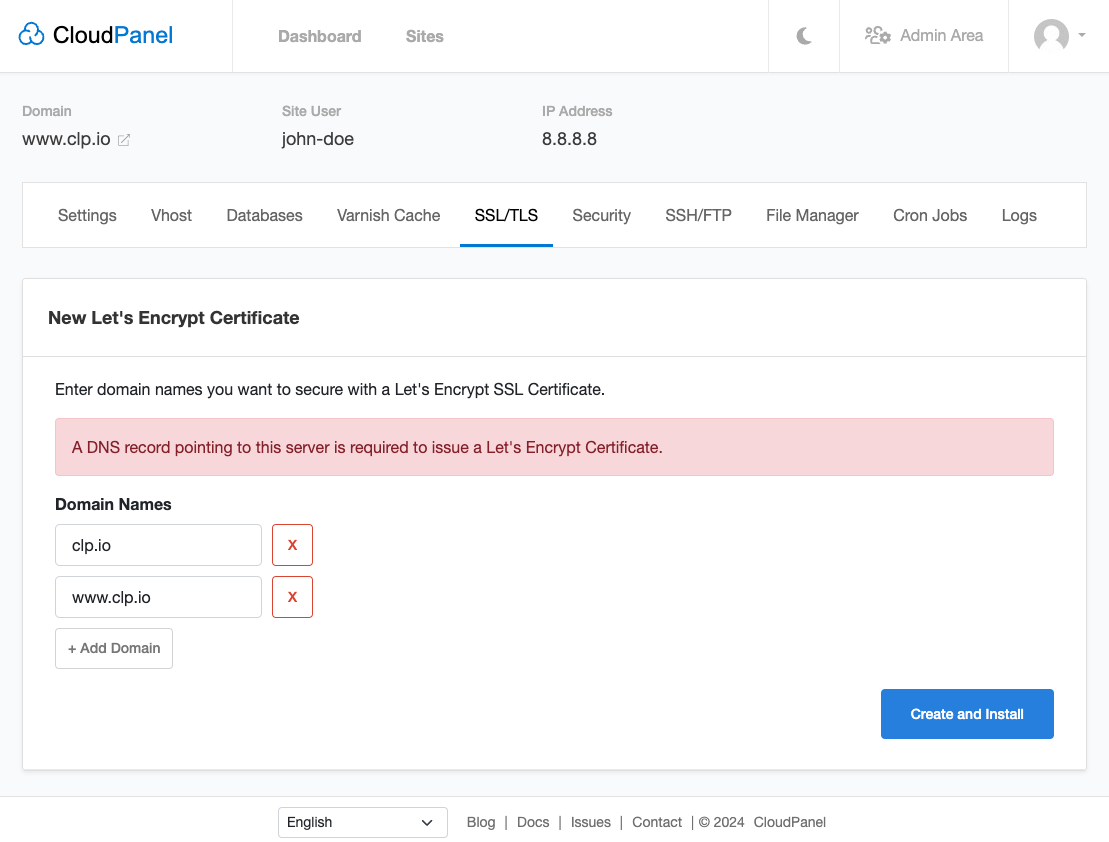
A dialog box will appear, pre filled with your active domain names. Verify that all listed domains are accurate, and then click the Create and Install button.
[+] [Callout] Info DNS Verification Warning –
Before clicking the Create and Install button, double check that both your primary domain (e.g., domain.com) and any relevant subdomains (e.g., www.domain.com) have active DNS records pointing directly to your server.
If a listed subdomain does not have a corresponding record, the SSL validation challenge will fail, and CloudPanel will return an installation error.
- Navigate to the SSL/TLS Section
- Option 2 Use a Cloudflare Certificate
If you use Cloudflare to proxy your website's traffic, you do not necessarily need to issue a separate Let's Encrypt certificate on your origin server. Instead, you can leverage Cloudflare's free edge certificates.
[+] [List] Green Ordered - Enable The Proxy In Cloudflare
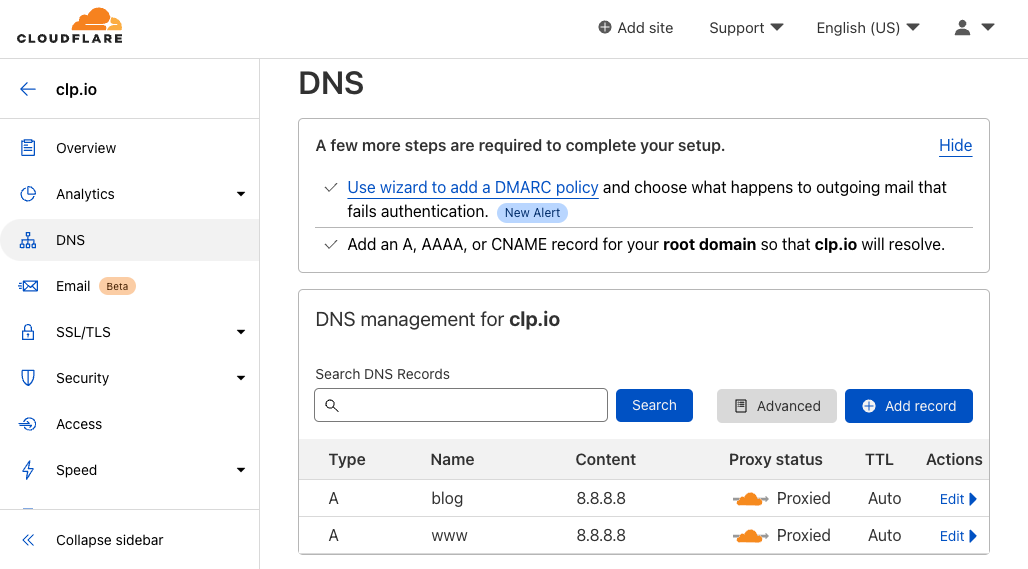
Log in to your Cloudflare dashboard and navigate to your DNS settings. Ensure that the cloud icon next to your domain's A record is set to Orange (Proxied). This indicates that your web traffic is successfully routing through Cloudflare's secure network.
- Set The SSL/TLS Mode To Full (Strict)
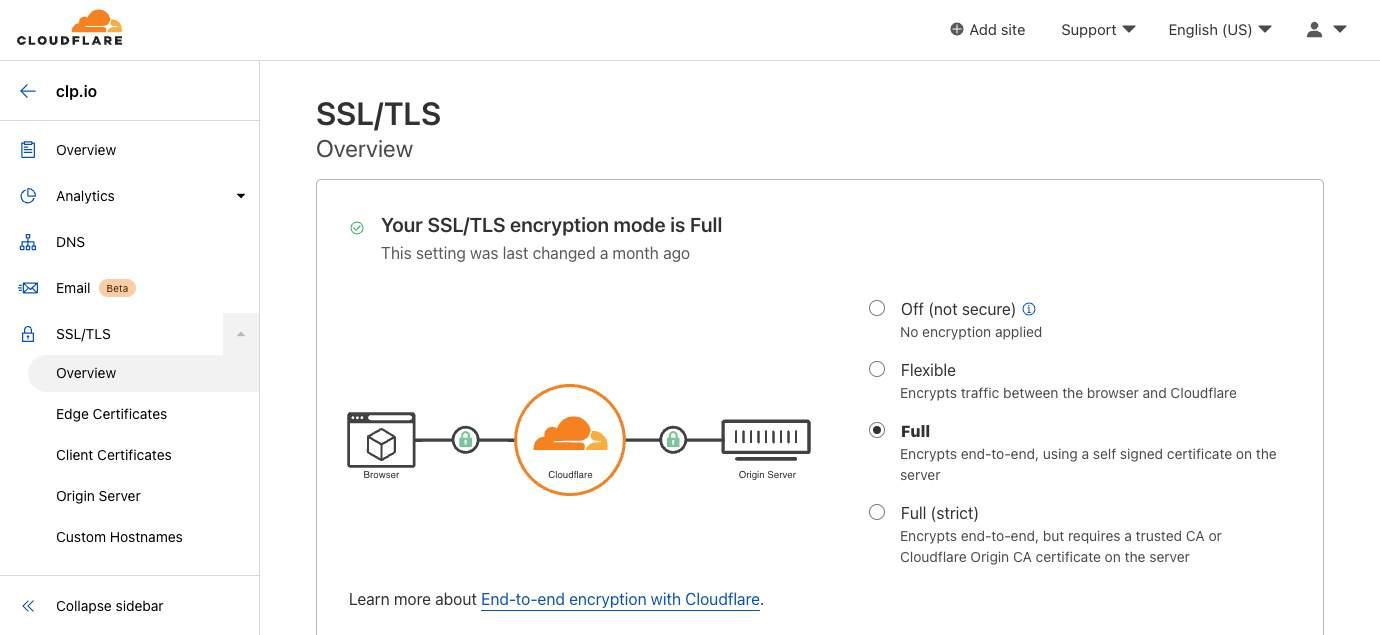
Within your Cloudflare dashboard, navigate to the SSL/TLS app section and set your encryption mode to Full (Strict). This ensures a fully secure, encrypted connection all the way from the visitor's browser to your origin server.
Origin Server Requirement Setting Cloudflare to Full (Strict) requires an SSL certificate to be installed on your origin server as well. Without a valid certificate on the server, the connection between Cloudflare and your host will remain unencrypted and vulnerable to intercept.
- Harden CloudPanel Security
For maximum security, log back into your CloudPanel dashboard, navigate to the Security tab for your site and toggle the "Allow traffic from Cloudflare only" option to On. This drops any malicious requests attempting to bypass Cloudflare's firewall protection.
- Enable The Proxy In Cloudflare
- Option 3 Import a Custom Certificate
For businesses that require a higher tier of validation such as an Organization Validation (OV) or Extended Validation (EV) certificate you will need to import your files manually.
Trustname's premium SSL offerings provide maximum protection for e-commerce stores and corporate entities. After purchasing your premium certificate from Trustname, download your credential files.
[+] [List] Green Ordered - Select Import Certificate
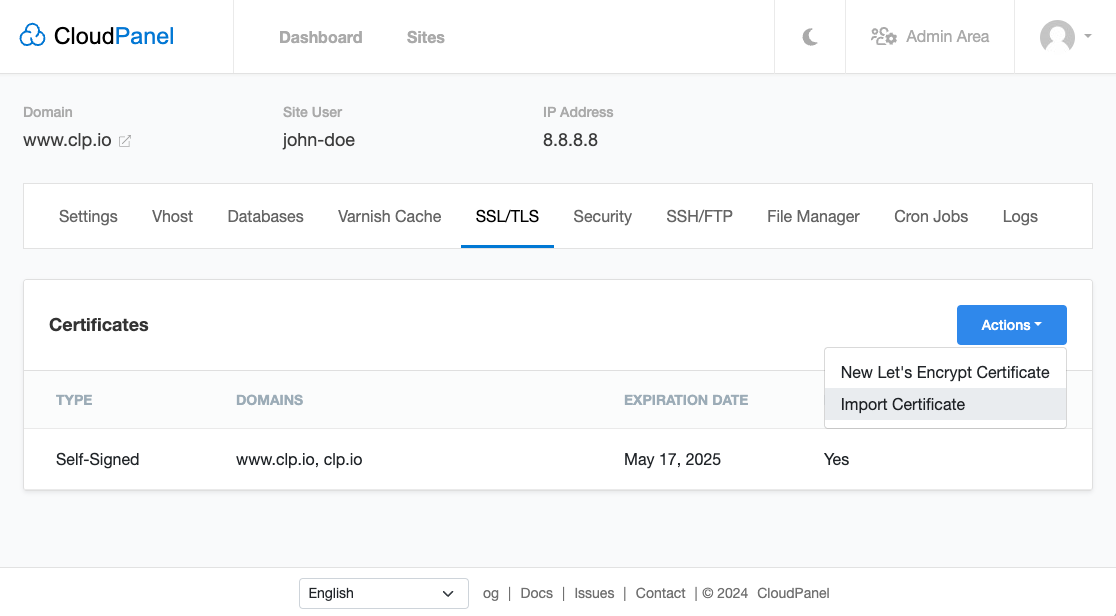
In the SSL/TLS tab for your designated site inside CloudPanel, click the Actions button and select Import Certificate.
- Populate Your Certificate Files
A dedicated interface form containing three distinct text areas will appear. Copy and paste the text contents of the files you received upon purchasing your certificate into the matching inputs.
- Import and Install
Click the Import and Install button. CloudPanel will process the keys and instantly apply your custom premium certificate to secure your site.
[+] [List] Green Unordered - Private Key (Generated during your initial CSR creation).
- Certificate (Your primary domain certificate file)
- Certificate Chain (Also known as the CA Bundle or Intermediate Certificate)
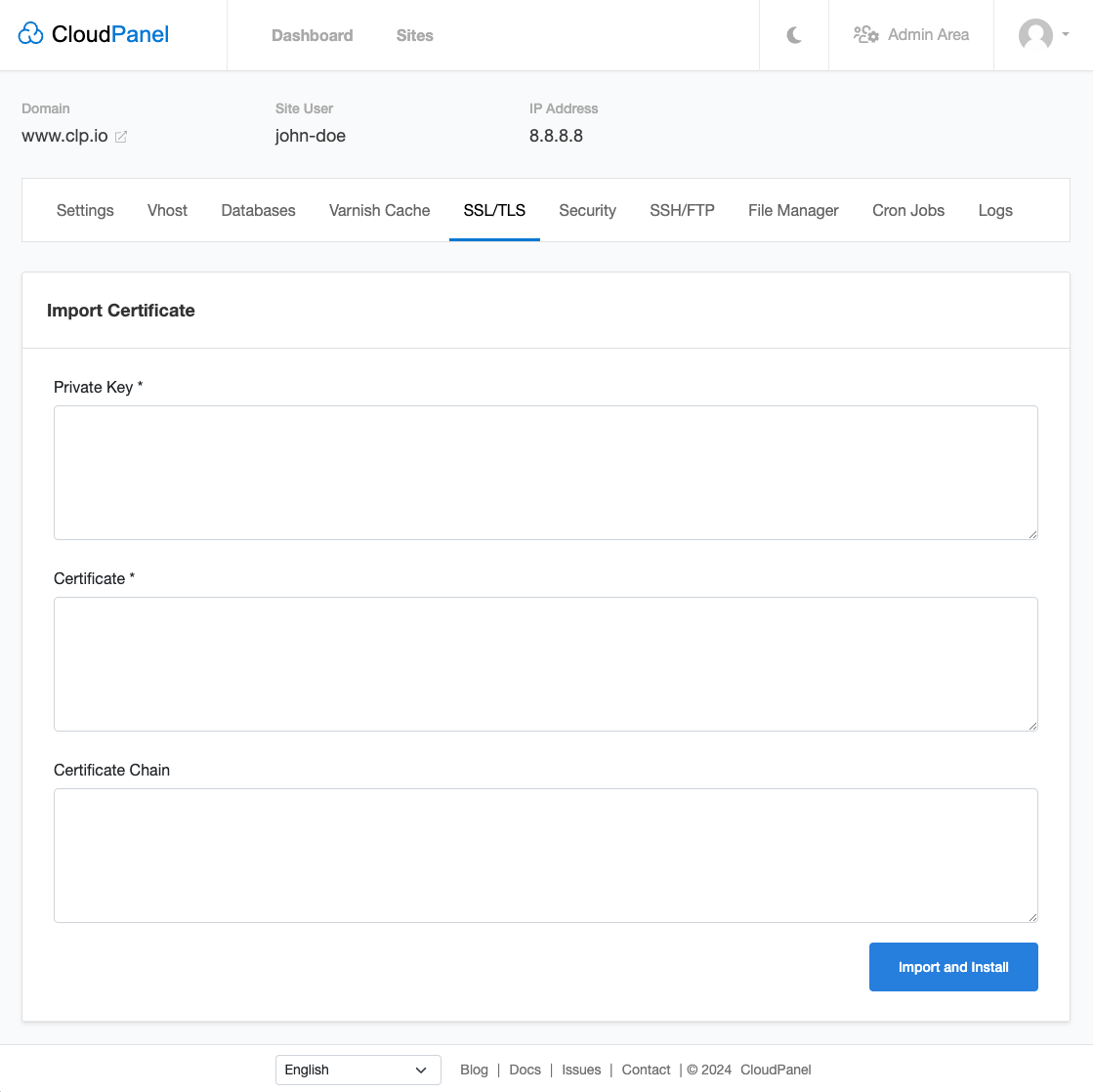
- Select Import Certificate
Understanding Trustname's SSL Certificates
At Trustname, we provide an expansive range of SSL certificates to match your exact operational needs, ensuring you project the right level of validation and trust to your target audience.
| SSL Certificate Type | Best Used For | Vetting Process | Inclusion Highlights |
| Domain Validation (DV) | Blogs, personal portfolios, and small websites. | Automated completed in minutes. | Free with every Trustname hosting plan. Available as Single, Wildcard or Multi-Domain. |
| Organization Validation (OV) | Established businesses and e-commerce stores. | Corporate identity and address verification (1 to 3 business days). | Displays official company information within certificate details. Available as Single or Wildcard. |
| Extended Validation (EV) | Financial institutions and enterprise platforms. | Rigorous background verification of operational history. | The gold standard of trust. Includes an official site trust seal and comprehensive financial warranty. |
Trustname's Secure Web Hosting Ecosystem
A robust SSL certificate needs a highly secure hosting foundation to operate effectively. Trustname's web hosting infrastructure is engineered from the ground up for speed, reliability, and modern protection.
- 100% Uptime Guarantee
Every second your website is down, you risk losing valuable customers, brand credibility, and search engine visibility. We guarantee a 100% uptime SLA, giving you absolute confidence that your website remains online and accessible to your audience around the clock.
- Comprehensive Security Layers
Our platform protects your data using advanced, multi-layered defense protocols:
[+] [List] Green Unordered - Advanced DDoS Protection
Dynamically shields your applications against high-volume malicious traffic spikes.
- Web Application Firewall (WAF)
Monitors and blocks unwanted web exploits before they reach your site.
- Automated Backup
Regularly backs up your critical site files and databases so your data is always safe and recoverable.
- Advanced DDoS Protection
- Scalable Architecture Built for Speed
Trustname offers hosting solutions that adapt dynamically as your business grows. Whether you are starting with our affordable Shared Hosting, utilizing the increased control of a Virtual Private Server (VPS), or demanding the ultimate, isolated performance of a Dedicated Server, our infrastructure scales seamlessly with you.
Our hosting environments feature a free built in Content Delivery Network (CDN) to maximize global loading speeds, alongside expansive storage and unmetered bandwidth allocations.
- 24/7 Expert Support
Great technology is only as good as the people standing behind it. At Trustname, we pride ourselves on our world class customer support team. Our technical experts are available 24/7/365 via live chat, phone, and email.
Backed by deep web hosting expertise, our staff delivers fast, effective technical solutions to minimize operational downtime and comfortably guide you through any technical configuration including your CloudPanel SSL certificate installation.
Get secure and build immediate customer trust. Get started with Trustname's premium hosting and SSL solutions today!
Was this article helpful?
That’s Great!
Thank you for your feedback
Sorry! We couldn't be helpful
Thank you for your feedback
Feedback sent
We appreciate your effort and will try to fix the article