Setting up auto renewal ensures that your domain names remain active, secure, and under your control without manual intervention. By automating this process, you eliminate the risk of accidental expiration, service downtime, or losing your valuable digital assets. This comprehensive guide walks you through activating, configuring, and managing your auto renewal preferences on Trustname.
Key Takeaways
- Seamless Protection – Auto renewal completely eliminates the risk of missing expiration dates and having your website go offline.
- Smart Retry System – Trustname automatically attempts renewals 30 days before expiration, with backup retries at 7 days and on the expiry date.
- Flexible Terms – You can configure auto renewal for any duration from 1 to 10 years.
- Dual Payment Support – Trustname can automatically draw from your linked credit/debit card or your Trustname account wallet balance.
TABLE OF CONTENTS
- Key Takeaways
- How to Set Up Auto-Renewal
- The Auto-Renewal Timeline & Retry Process
- Why Enabling Auto-Renewal is Crucial
- The Challenges of Recovering an Expired Domain
- Frequently Asked Questions (FAQs)
How To Set Up Auto-Renewal
Activating auto renewal on your domains takes just a few clicks. Follow this step by step walkthrough to configure your preferences.
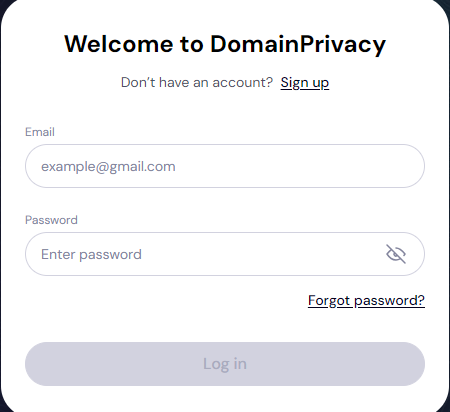
- Log In To Your Trustname Account
Click on "Log In" in the top right corner of Trustname's homepage. Enter your registered username and password to access your dashboard.
- Access The Domain Section

Once logged in, click on the "Domain" tab in the top navigation bar of the homepage. This will expand a dropdown menu with four choices click on "Registered Domains" to view your full portfolio.
- Select The Domain For Auto-Renewal
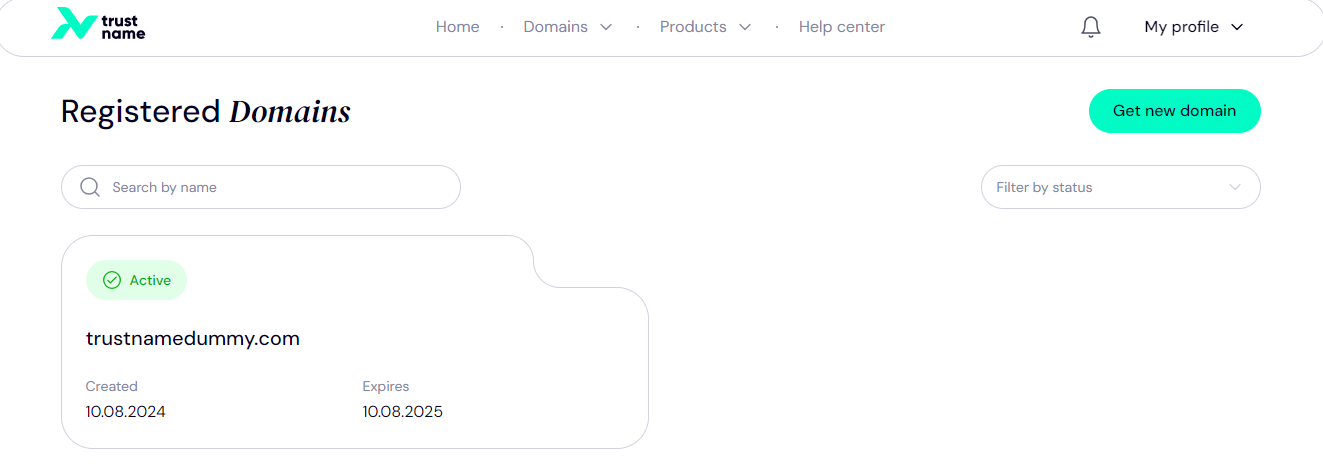
This page displays all your registered domains. You can either scroll down to find your domain or use the search bar at the top to locate it quickly. Click on your chosen domain to access its detailed settings page.
- Enable Auto Renewal
Scroll down the domain details page to locate the "Auto Renewal" toggle. Click the toggle to turn it on.
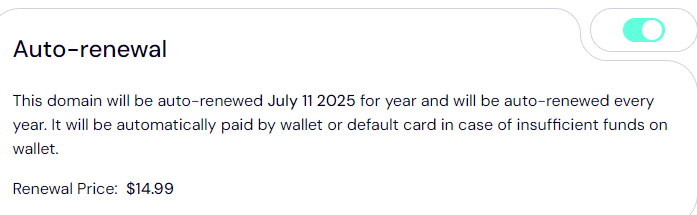
[+] [Callout] Info Insert title here [+] [Callout] Title/Title with Icon -> If you already have active funds in your Trustname wallet or a linked bank card, the system will instantly display your renewal cost and the scheduled auto renewal date. If you do not have a payment method on file, the system will automatically redirect you to set one up.
- Configure Your Payment Method
On the payment configuration page, enter your billing address and scroll down to the "Add New Card" section. Enter your card details and click "Save Card"
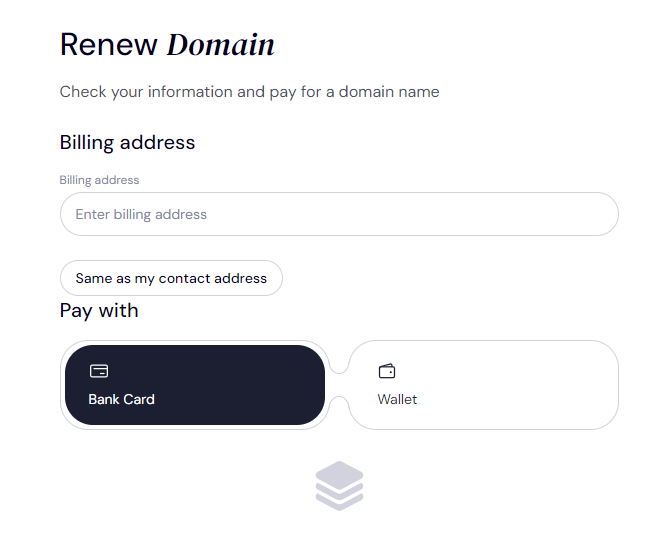
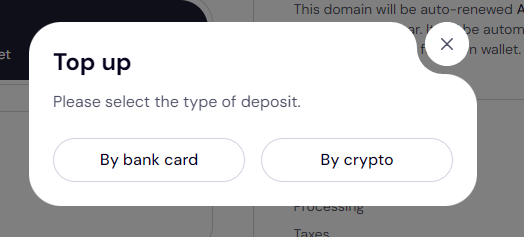
Open your wallet and click "Top Up" to add funds via bank card or crypto.
- Choose Your Renewal Duration
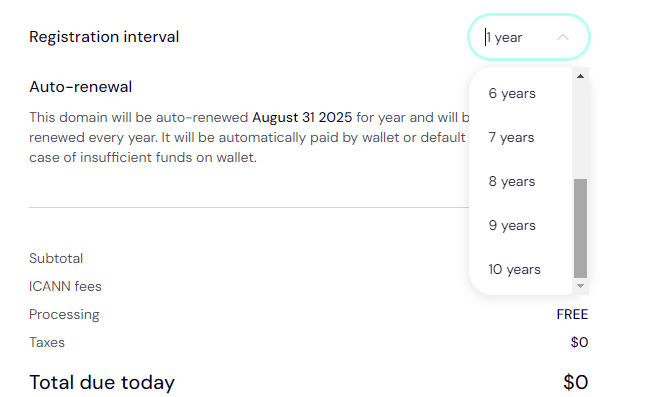
Specify how many years you want the domain to automatically renew for when the time comes. You can freely choose any duration from 1 to 10 years.
- Review And Confirm
Review your configuration to ensure you have selected the correct duration, payment method, and that the estimated cost is correct. Once you are satisfied, click "Pay". Your auto renewal settings will be fully saved once the configuration payment is verified.
Trustname utilizes a multi phase renewal window to protect your domains from accidental expiration if a payment fails.
Why Enabling Auto-Renewal Is Crucial
Manually monitoring expiration dates across a large portfolio of domains can be difficult. Missing a deadline can result in your website going offline, email services breaking, and potentially losing your domain entirely.
What Happens When A Domain Expires?
- The Grace Period (0 to 30 Days)
If your domain is not renewed by its expiration date, it enters a Grace Period (which typically lasts up to 30 days, depending on the registry extension). During this window, your domain is temporarily parked (meaning your website and email will stop working), but we reserve the registration for you.
You can still reactivate it at our standard, regular renewal price.
- The Redemption Phase (30+ Days)
If you still do not renew your domain during the Grace Period, it moves into the Redemption Phase. Once a domain enters this state, you can no longer renew it through your standard dashboard. To recover your domain, you must contact our customer support team directly.
[+] [Callout] Info Insert title here [+] [Callout] Title/Title with Icon -> Please note that retrieving a domain in the Redemption Phase is subject to significant registry imposed recovery fees.
The Challenges Of Recovering An Expired Domain
Once your domain moves past the Grace Period, it may be put up for public auction or registered by domain squatters. These third parties often buy expired domains to sell them back to the original owners at a significantly higher price.
To avoid unnecessary stress, unexpected recovery costs, and critical business disruptions, we highly recommend keeping auto renewal active.
Frequently Asked Questions (FAQs)
You can verify your status at any time by logging into your Trustname account, going to the Domain section, and selecting your specific domain. Its current auto-renewal status is clearly displayed on the domain details page.
If your saved credit card has expired or is outdated, our system will not be able to process the auto-renewal charge. You will receive an immediate email notification warning you of the payment failure, and you will need to update your payment details as soon as possible to ensure continuous coverage.
Yes. You can update your payment preferences at any time by logging into your Trustname account, navigating to the Domain section, and editing your payment preferences under your auto renewal settings.
Trustname allows you to configure your auto-renewal settings for any duration from 1 to 10 years.
To turn off auto-renewal, simply log in to your account, go to the Domain section, select your domain, and toggle the auto-renewal option to "Off". If you disable this, please make sure to manually renew your domain before its expiration date.
Yes. Trustname sends automated notifications and reminders to your registered email address well in advance of your domain's expiration date, keeping you informed of upcoming renewals and payment statuses. Please keep your account email address updated so you don't miss these updates.
If you receive a payment failure notice, check your saved credit card details to ensure they are correct, or verify that your Trustname wallet has a sufficient balance. Update your billing information in your dashboard and the system will automatically try again on the next scheduled retry attempt.
Yes! You are always welcome to manually renew your domain at any point, even if you have auto-renewal enabled. You can do this by opening the Domain section in your dashboard and choosing to renew your domain manually.
If the domain is not renewed during the Grace Period, it enters the Redemption Phase, which incurs additional administrative recovery fees. If it is still not recovered during redemption, the registry will eventually delete the domain, making it publicly available for anyone else to register.
Immediately after expiration and once the Grace Period ends, your domain name may be auctioned off or registered by domain squatters who may try to sell it back to you at a much higher cost. We recommend keeping auto renewal turned on to avoid service interruptions.
Was this article helpful?
That’s Great!
Thank you for your feedback
Sorry! We couldn't be helpful
Thank you for your feedback
Feedback sent
We appreciate your effort and will try to fix the article